

Many Volvo owners report missed taps, lag, and uneven response zones on their car infotainment screens. These symptoms often reflect the wider infotainment system behavior, not just the glass. Processing delays, app animations, and software glitches can make inputs feel inaccurate.
A quick restart can clear minor freezes and refresh the interface. That simple step helps when the system stalls. For deeper issues, updates and configuration checks matter more than hardware swaps.
Volvo moved many models to a Google-based environment to unify the Volvo Car UX, but major rollouts faced delays. Owners may still wait for software fixes that improve responsiveness and overall user experience. While troubleshooting, prioritize safe operation: use voice commands and steering-wheel buttons for key tasks when the screen feels unreliable.
Key Takeaways
- Missed taps often come from software lag or heavy animations, not just the screen.
- Restarting the system can fix many temporary freezes.
- Google-based updates aim to improve the infotainment experience but may roll out slowly.
- Start troubleshooting with simple steps, then move to updates and diagnostics.
- Use voice and wheel controls for safety until responsiveness improves.
Why is my 2025 Volvo’s touch sensitivity so bad? Common symptoms Volvo owners report
Many drivers report frequent missed taps and erratic responses from their Volvo infotainment interface. These patterns help separate a true system issue from a one-off app glitch. Note when problems repeat across different apps or after a phone connects.
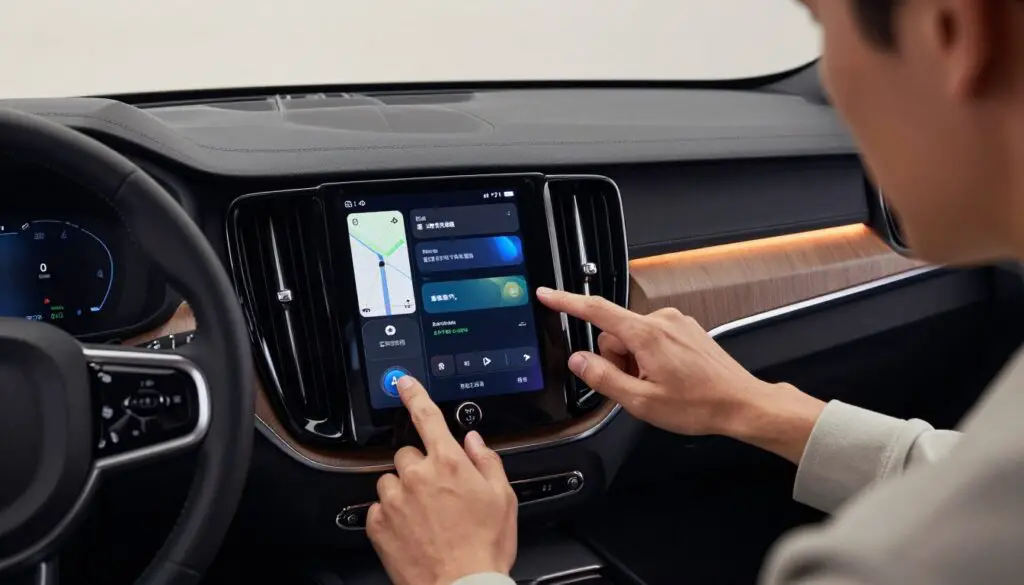
Unresponsive or inconsistent taps
Some users need multiple presses, see taps register in the wrong place, or find certain areas of the touchscreen work unevenly. That can make simple actions take longer and feel unsafe while driving.
Lag, freezing, and slow performance
A slow system delays input recognition. Animations stutter and the interface can ignore taps until it catches up. This looks like poor touch response but often traces back to processing load or software freezes.
Missed icons within Android Automotive apps
Small icons, deep menus, and in-app scrolling make selection harder. When navigation, media, and a phone are active, owners often report more missed touches and longer selection times.
Related symptoms to watch for
- Bluetooth drops or unstable smartphone connections
- Apps failing to load or audio skipping
- Issues that appear only after start-up or when a phone pairs
If the touchscreen becomes unpredictable, use steering-wheel controls or voice for key actions until the issue is isolated.
What’s actually causing the problem in 2025 Volvo infotainment systems
Multiple factors can make an otherwise healthy screen feel unresponsive. These include stuck software threads, corrupted cached data, and limited processor headroom that delay event handling. A short restart often clears the temporary state and restores normal input recognition.
Software glitches and corrupted data
Phantom touches often result from the system thread that processes inputs being delayed or frozen. Corrupted cache or app data can block touch events until the unit reboots or the faulty data clears.
Outdated version and rollout timing
Even when a fix exists, a staged software update can leave many cars waiting. Volvo delayed a major Volvo Car UX update for millions of eligible vehicles, so affected units may run older firmware longer.
Hardware, UX design, and performance limits
Calibration tolerances, screen wear, or damage lower accuracy on some models. Android Automotive design choices also nudge drivers toward voice, which can make touch browsing feel less responsive than phone-like UIs.
Drive modes and perceived responsiveness
Complex mode menus that require multiple taps amplify frustration when lag appears. If switching drive modes takes extra taps and the UI stalls, owners often report the screen as failing when the issue is actually depth and delay.
- Quick check: consistent dead zones = hardware; random lag that clears after a reboot = software.
- For related diagnostics and model-specific steps, see a dedicated guide on XC90 troubleshooting.
Troubleshooting steps to improve touch sensitivity and infotainment performance
Start with the least invasive fixes and move stepwise toward resets or repair if the problem stays. This saves time and keeps your personalized settings intact when possible.
Restart the system
Quick reboot first: power-cycle the infotainment unit to free memory and clear temporary glitches. If responsiveness improves after a restart, the root cause likely points to software or performance, not hardware.
Check for software updates in settings
Open Settings → Software or System → Check for update. Install available fixes; staged upgrades may arrive later, so check again after some time.
Verify connections
Inspect phone pairing, Bluetooth links, Wi‑Fi status, and any USB cables. Poor connections or repeated reconnects can bog the system and harm input response.
Reset and inspect hardware
Use a factory reset only for persistent freezing or repeated crashes. It clears accounts and custom settings but often removes corrupted configuration states.
Physical checks and safe workaround
Clean the screen, check for cracks or pressure marks, and keep the interior free of oils or debris. Set up Google Assistant routines (Assistant settings → Routines → add command and actions) to reduce reliance on on-screen controls while you troubleshoot.
When to seek service: dead zones that never register, frequent freezes after updates, or safety issues merit professional diagnostics at a Volvo service center.
Conclusion
Most reported screen issues trace back to software load, UX choices, or smartphone links rather than failing glass.
Start simple: restart the infotainment system, install any available update, and clear pairing or Wi‑Fi conflicts. Next, try a factory reset only if problems persist and inspect the screen for marks or pressure damage.
Expect meaningful changes to arrive with staged releases; Volvo Cars has delayed a major Google UX rollout, so fixes may take time for some vehicles.
For safe driving, favor voice and steering-wheel controls instead of repeated taps. If freezes continue or inputs stay inconsistent after resets and updates, schedule service for professional diagnostics at an authorized center.
Document when problems occur, which apps act up, and whether a reboot helps. That record speeds troubleshooting and improves the repair experience for owners and technicians alike.
FAQ
What common symptoms do Volvo owners report with the infotainment touchscreen?
Owners often see unresponsive or inconsistent taps, delayed responses, freezing, and slow animations. Icons can be hard to select during Android Automotive app use, and touchscreen issues sometimes coincide with Bluetooth or smartphone connection glitches.
How can a simple restart help an infotainment system that’s acting up?
Restarting clears temporary software glitches and cached data that interfere with responsiveness. That action refreshes system processes and can restore normal tap recognition for a short time while underlying issues are addressed.
Could an outdated software version cause lag and missed touches?
Yes. Outdated firmware or a delayed major Volvo Car UX update can leave known bugs unpatched. Installing the latest system updates often improves performance and touch accuracy by fixing software-level issues.
Do hardware or screen factors affect how accurately the system registers input?
Absolutely. Calibration limits, a damaged screen surface, screen protector issues, or differences across models can change responsiveness. Physical wear, dirt, or pressure points on the glass may also cause missed or ghost touches.
How do Android Automotive design choices impact touchscreen usability?
Android Automotive UX tradeoffs—larger tiles, animations, or multi-step menus—can require extra taps and make navigation feel slower. These design elements aim for clarity but can reduce perceived responsiveness while driving.
Why might some models like the Volvo XC90 feel more responsive than others?
Performance depends on hardware specs and system optimization. Newer or higher-tier models often use faster processors and refined firmware, which reduces lag and improves overall responsiveness compared with entry-level variants.
Can drive modes or vehicle settings change touchscreen behavior?
Yes. Certain drive modes and safety settings limit interface responsiveness to reduce driver distraction. Additional taps or locked functions in sport or driver-focused modes can amplify the impression of poor sensitivity.
What immediate troubleshooting steps should I try to improve responsiveness?
Restart the infotainment system, check for and install software updates, verify Bluetooth, Wi‑Fi, and USB connections, and clean the screen. These steps address common software and connectivity causes quickly.
When should I perform a factory reset?
Use a factory reset if repeated restarts and updates don’t fix freezing or persistent configuration errors. Back up personal settings first, since the reset returns the system to its original state.
Are there safe workarounds if touch accuracy remains inconsistent while driving?
Yes. Rely on voice controls and Google Assistant routines for navigation, media, and phone calls. These reduce the need for precise taps and improve safety until the touchscreen issue is resolved.
When should I contact Volvo service about touchscreen problems?
Contact Volvo Cars service if updates, resets, and physical inspections don’t help, or if you notice hardware damage, persistent connectivity failures, or repeated freezing. A dealer can run diagnostics and apply firmware or hardware repairs as needed.