
This brief guide explains what “Google built in” means for U.S. drivers and why it matters for daily driving. The aim is practical: learn what changes when core apps are embedded in the center display, not just mirrored from a phone.
Expect clear differences between an embedded infotainment system and phone-dependent screens. You will see how integrated services handle navigation, voice control, and app access directly from the display.
The article previews three pillars—Assistant, Maps, and Play—and shows how these services appear on the center screen. It also notes availability varies by model year and market, so confirm features for your specific model.
What you’ll get is a mix of benefits and step-by-step setup tips so you can use this system in your vehicle right now with less distraction and more comfort.
Key Takeaways
- “Google built in” means embedded apps and services on the center display.
- Core apps—Assistant, Maps, Play—improve navigation, voice, and apps.
- Embedded system reduces phone dependence and can lower distraction.
- Availability of services differs by model year and market—check your model.
- The article offers practical, step-by-step setup and usage tips.
Google Android Automotive in Volvo: What “Google built-in” means for your infotainment system
Built-in google built-in places core services on the car’s center screen so key functions run on the vehicle, not just from a connected phone. This changes how drivers access navigation, voice control, and in-car apps.
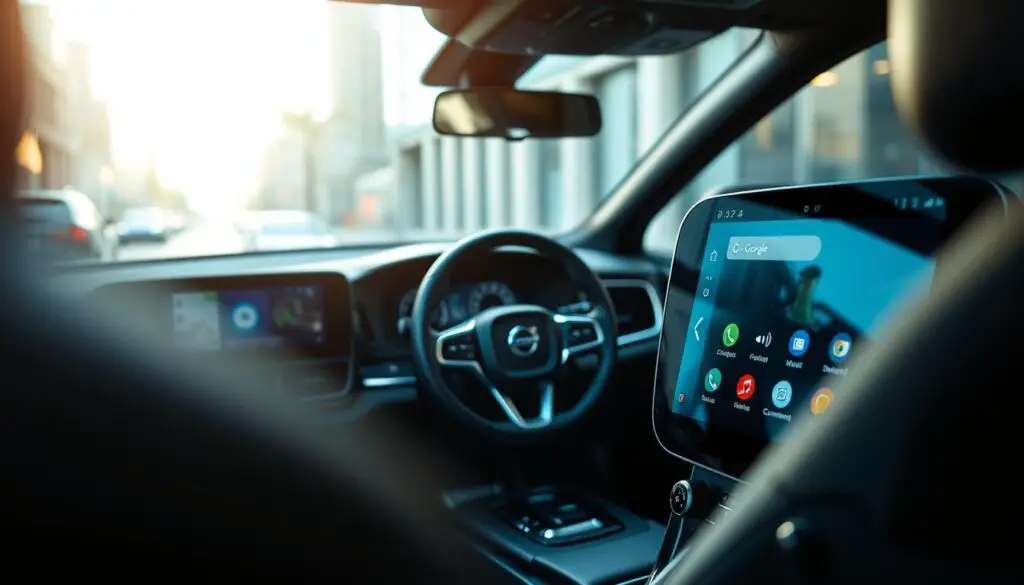
Google Automotive Services vs. phone mirroring with Android Auto™ and Apple CarPlay®
Google Automotive Services is the bundled set of navigation, voice assistant, and an app ecosystem that OEMs use to deliver a complete in-car interface. Mirroring solutions require a phone to host apps and the interface. Built-in systems can operate independently for many tasks.
What’s on the center display: Assistant, Maps, and Play
- Voice: hands-free control via the embedded assistant.
- Navigation: native google maps with integrated routing and EV support.
- Apps: google play for compatible in-car downloads.
Drivers can still pair a phone for calls or music, but the built-in system reduces constant plugging in. Model availability varies by year and market, so check your specific models when you explore volvo for more information and frequently asked details.
How does Google Android Automotive enhance Volvo infotainment?
The center display shifts common tasks into the vehicle so drivers rely less on a phone. Voice-first commands keep hands on the wheel and eyes on the road. Use simple prompts to start routing, play playlists, or change cabin climate.
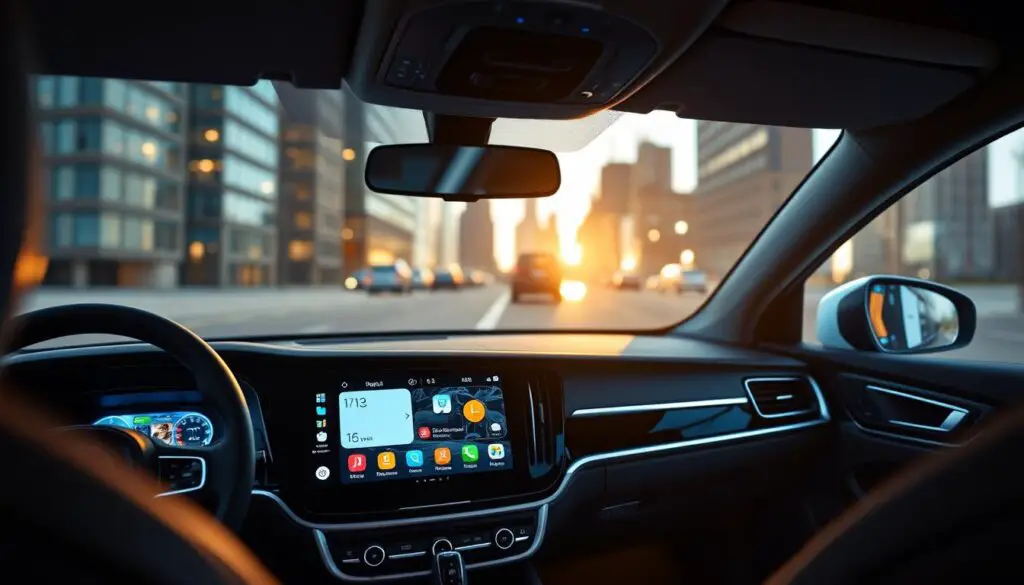
Hands-free voice control that reduces distraction
Say a wake phrase to begin navigation, call contacts, send a message, play music, or heat a seat. For example: “Start navigation to downtown,” “Play my road-trip playlist,” or “Set temperature to 70 degrees.”
Best-in-class navigation and EV routing
Google Maps feels familiar but gains strength through vehicle integration. It offers real-time directions and finds charging stations along routes to ease EV range concerns.
Entertainment, personalization, and future-ready updates
Google Play brings apps for podcasts, audiobooks, and streaming so music and media fit longer trips. Driver profiles save preferences for multi-driver households. Over-the-air updates keep features current without service visits.
“Hands-free control and OTA updates make the system feel like a living platform that improves over time.”
| Feature | Benefit | Example models |
|---|---|---|
| Voice control | Lower distraction, quick tasks | XC90, EX90, EX30 |
| Navigation with charging | Confident longer trips for EV owners | EX30, EX90 |
| App ecosystem & updates | More media choices; ongoing improvements | XC40, XC90 |
For troubleshooting or voice issues, see assistant troubleshooting at assistant troubleshooting.
How to set up and use Google built-in features in your Volvo today
Begin with a driver profile. Each driver should add a profile to save a curated home screen and baseline settings.
Dynamic tiles surface your most-used navigation and media apps so the system feels faster and more intuitive.
Create and sign in
Sign in with your Google Account to enable google play downloads and personal destinations in google maps. If you stay signed out, navigation and assistant still work but with limited personalization.
Pair your phone
Download the Volvo Cars app, create a Volvo ID, then link the phone to sync ownership features and remote services.
Connectivity and voice
Many models include built-in data for four years via a Digital services subscription. Otherwise use Bluetooth tethering and your phone’s plan.
- Voice checklist: start navigation, play music, make calls, send messages, and set climate or seat heaters.
- Troubleshooting: try Reset Personal Settings for odd lag; use Factory Reset for persistent faults.
- Cooling message: allow the center display to cool—it’s a temporary protective action.
| Step | Why it matters | When to use |
|---|---|---|
| Create Driver Profile | Personal home screen and saved prefs | Every driver |
| Sign in with Google | Downloads and personal places | To access google play |
| Link via Volvo Cars app | Remote and synced features | During initial setup |
For GPS or routing problems, see volvo gps troubleshooting for step-by-step help.
Conclusion
The embedded center display brings navigation, voice control, and apps together for a more driver-focused infotainment experience.
Practical benefits include fewer distractions via hands-free Assistant, stronger routing and charging discovery through Maps, and wider media choices from Play. Personalization with driver profiles and a signed-in account makes the setup feel familiar across users.
Confirm availability for your specific model year and trim, since digital services and included subscriptions vary by market. To decide, explore volvo models like the volvo xc90, volvo ex90, volvo ex30, and volvo xc40, compare the current lineup, then check local retail inventory and special offersvolvo before a test drive.
Future-ready updates arrive over the air so the system keeps improving, helping long-term ownership confidence today.
FAQ
What does “Google built-in” mean for my Volvo’s infotainment system?
“Google built-in” means your Volvo integrates Google services directly into the center display. That brings Google Assistant for voice control, Google Maps for navigation, and access to Google Play for compatible in-car apps without relying solely on phone mirroring. The system runs on a native platform that supports vehicle-specific features like climate control, seat settings, and EV charging routing.
How do Google Automotive Services differ from phone mirroring with Android Auto™ or Apple CarPlay®?
Google Automotive Services run natively in the vehicle, so apps and voice assistant work independently of your phone. Phone mirroring streams apps from your device and requires a connected phone. Native services provide deeper integration with vehicle controls, built-in data connectivity, and the ability to keep certain apps and maps up to date via the car’s own connection.
Which Google features appear on the Volvo center display?
The center display shows Google Assistant for hands-free control, Google Maps for navigation and traffic data, and Google Play for installing supported music, podcast, and utility apps. The layout is designed for quick access to media, directions, and vehicle information while driving.
How does voice control reduce distractions while driving?
Voice control lets drivers issue natural-language commands to start navigation, find destinations, play music, make calls, or adjust climate settings without taking hands off the wheel or eyes off the road. Google Assistant supports multi-step commands, so common tasks complete faster and with fewer manual interactions.
What navigation advantages come with this system, including EV support?
The navigation system provides real-time traffic, lane guidance, and dynamic rerouting. For electric models, it adds EV-specific routing, factoring charging stops, available stations, and estimated charging times to suggest optimal routes for range and convenience.
Can I install more entertainment apps in my Volvo?
Yes. With Google Play access, you can download compatible streaming and audio apps designed for in-car use. That extends music, podcast, and radio options beyond built-in sources, while ensuring apps meet safety and usability standards for driving.
How does the system personalize the in-car experience?
Driver profiles store preferences like seat position, climate settings, preferred home screen layout, and saved navigation destinations. When you sign in with a Volvo ID or Google Account, the system can recall these settings automatically for a consistent, personalized experience.
How are software and apps kept up to date?
Volvo supports over-the-air (OTA) updates for the infotainment system and some vehicle software. OTA updates deliver feature improvements, security patches, and app updates without visiting a dealer, keeping the car current over its lifecycle.
What steps do I take to set up a Driver Profile?
Create a Driver Profile via the center display settings. Assign a name and link preferences such as seat and mirror positions, climate, and saved destinations. Profiles sync with Volvo ID when you sign in, making them available across compatible vehicles.
How do I sign in with my Google Account and what benefits does it provide?
Use the center display to sign in to your Google Account. Signing in enables personalized Maps suggestions, saved destinations, and the ability to download apps from Google Play. It also ties certain preferences to your account for continuity across sessions.
How do I connect my smartphone using the Volvo Cars app and Volvo ID?
Install the Volvo Cars app on your phone, create or sign in with a Volvo ID, and follow the pairing steps in the app and vehicle. The app can handle remote services, vehicle status, and help manage connectivity settings and permissions.
What connectivity options are available and when should I use tethering?
Many Volvos include built-in data connectivity via a vehicle SIM. If your model lacks built-in data or if you need higher bandwidth, tethering your phone provides an internet connection for apps and updates. Check network requirements and data plans to optimize usage and avoid extra charges.
Which voice commands can I use for vehicle controls?
You can use voice commands for navigation, music selection, making calls, sending messages, and adjusting in-car systems like temperature and heated seats. Commands are designed to use natural language for quick, hands-free operation.
How do I reset personal settings or perform a factory reset?
To reset personal settings, open profile settings on the center display and remove or edit the profile. For a full factory reset, use the system settings menu under system or service options. A factory reset clears user data and returns infotainment to its original state; back up needed information before proceeding.
What should I do if the display shows overheating or performance warnings?
If the system shows overheating messages, safely stop the vehicle and allow the display to cool. Reduce screen brightness and close direct sun exposure where possible. If warnings persist after cooling, contact an authorized Volvo retailer for inspection and support.