
Many modern vehicles use smart software for daily navigation and media. Experiencing lag during a drive feels very frustrating and distracts drivers. Reliable operation is essential for maintaining safety and driving comfort.
A lagging Google-based infotainment system requires prompt technical attention. This resource provides a logical path to fix common performance bottlenecks. We explore specific troubleshooting methods for enhancing digital speed across your car hardware.
Drivers can optimize their car dashboard using simple maintenance protocols. Our article explains easy techniques like clearing cache data and checking the firmware. Improving slow responses ensures that every journey stays efficient in your car.
Modern automotive technology offers great convenience but needs regular care. This guide addresses technical glitches that hinder user experience. By following our steps, your vehicle software will run fast once again.
Key Takeaways
- Clear application cache files regularly.
- Verify latest firmware updates from manufacturers.
- Manage internal storage space efficiently.
- Reduce background application usage.
- Perform a hardware reboot for better stability.
- Review active data connections for signal drops.
Understanding What Causes Slow Performance in Google Automotive Systems
Slow performance in Google Automotive Systems can be frustrating, but understanding its causes is the first step towards a solution. Several factors contribute to this issue, impacting the overall user experience.
Insufficient Memory and System Resources
One of the primary reasons for slow performance is insufficient memory and system resources. When the system’s RAM is overwhelmed by multiple applications and background processes, it can lead to a sluggish response time. This is particularly true for systems with limited hardware capabilities.
Outdated Software and Firmware Versions
Using outdated software and firmware versions can also significantly impact performance. Manufacturers regularly release updates that not only add new features but also optimize system performance and fix bugs. Failing to update can leave the system vulnerable to slow performance and other issues.
Accumulated Cache and Temporary Files
Over time, accumulated cache and temporary files can occupy significant storage space, slowing down the system. These files, while intended to improve performance by reducing the need to reload data, can have the opposite effect if not regularly cleaned up.
Multiple Background Apps and Services Running
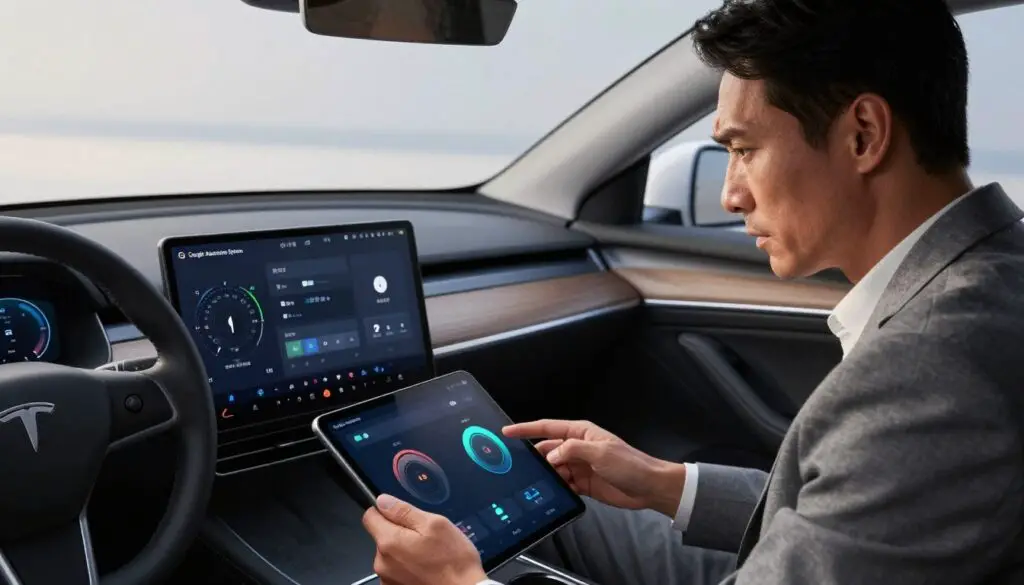
Having multiple background apps and services running simultaneously can consume system resources, leading to slow performance. Some applications continue to run in the background even when not in active use, contributing to this issue.
Connectivity Issues and Data Overload
Connectivity issues and data overload are another set of factors that can cause slow performance. Poor internet connectivity can lead to delays in data processing and response times, while an overload of data from various sources can strain the system’s capabilities.
To summarize, the common causes of slow performance in Google Automotive Systems include:
- Insufficient memory and system resources
- Outdated software and firmware versions
- Accumulated cache and temporary files
- Multiple background apps and services running
- Connectivity issues and data overload
Understanding these causes is crucial for effective troubleshooting and restoring the system to its optimal performance.
Quick Fixes: Basic Troubleshooting Steps
To address slow responses in Google-based infotainment systems, a series of basic troubleshooting measures can be taken. These steps are designed to be simple and effective, helping you resolve the issue without needing extensive technical knowledge.
Perform a System Restart
Restarting your infotainment system can often resolve the issue of slow responses. This action clears out temporary bugs and refreshes the system.
Soft Reset Method
A soft reset is a gentle way to restart your system without losing any saved data. To perform a soft reset, locate the power button on your infotainment system and hold it down for a few seconds until the system shuts down. Then, turn it back on.
Hard Reset Using Vehicle Controls
Some vehicles allow you to perform a hard reset using the controls on your steering wheel or dashboard. Check your vehicle’s manual for specific instructions on how to do this.
Clear Application Cache and Data
Over time, applications can accumulate cache and data that may slow down your infotainment system. Clearing this data can help improve performance.
Clearing Cache for Individual Apps
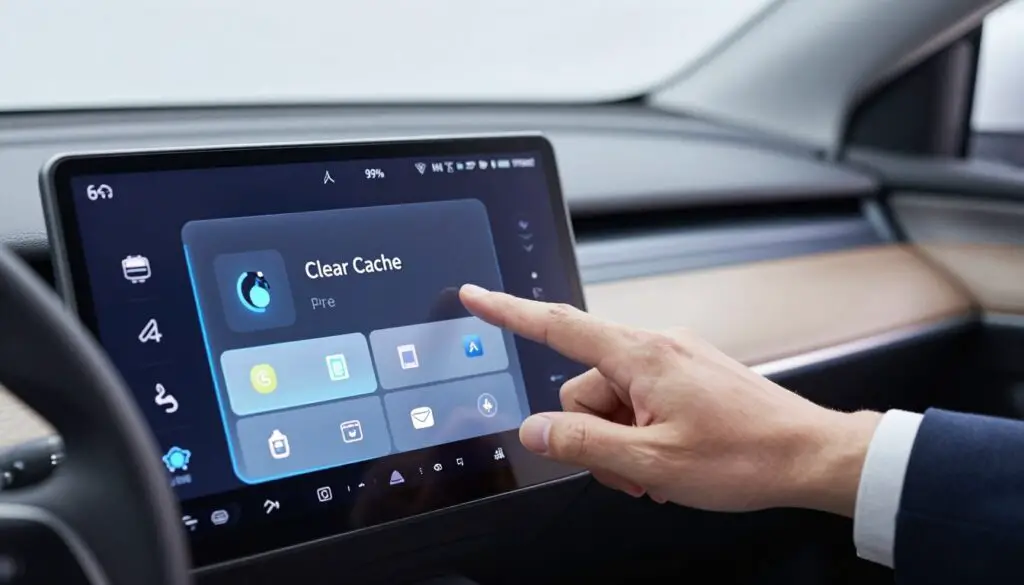
To clear cache for individual apps, go to the settings menu on your infotainment system, select “Apps” or “Applications,” choose the app you want to clear the cache for, and then select “Clear Cache.”
Clearing System-Wide Cache
For some systems, you may have the option to clear the system-wide cache. This is usually found in the storage or maintenance section of your system’s settings.
Force Stop Unresponsive Applications
Sometimes, an application may become unresponsive and consume system resources, leading to slow performance. Force stopping such applications can help.
To force stop an application, go to the “Apps” or “Applications” section in your system’s settings, select the unresponsive app, and choose “Force Stop.”
Check Your Internet Connection Speed
A slow internet connection can significantly impact the performance of your infotainment system, especially for applications that rely on internet connectivity.
| Internet Speed Test | Expected Speed | Action Required |
|---|---|---|
| Less than 5 Mbps | At least 5 Mbps | Check your internet plan or contact your ISP |
| 5 Mbps – 20 Mbps | More than 10 Mbps | Restart your router or check for interference |
| More than 20 Mbps | More than 20 Mbps | No action required |
By following these basic troubleshooting steps, you can potentially resolve the issue of slow responses in your Google-based infotainment system.
How to Fix Slow Responses in the Google-Based Infotainment System?
Resolving slow responses in Google-based infotainment systems requires a comprehensive approach. To effectively address this issue, it’s crucial to follow a series of advanced troubleshooting steps designed to optimize system performance.
Update System Software to the Latest Version
Keeping your system’s software up-to-date is vital for ensuring optimal performance. Outdated software can lead to compatibility issues and slow responses.
Checking for Available System Updates
To check for updates, navigate to your system’s settings menu, locate the “System” or “Software Update” section, and select “Check for Updates.” If an update is available, follow the on-screen instructions to download and install it.
Installing Updates Over WiFi Connection
For a seamless update process, it’s recommended to use a stable WiFi connection. This ensures that the update downloads quickly and without interruption.
Using Mobile Hotspot for Updates
If WiFi is not available, you can use your mobile hotspot. However, be aware that this may consume your data allowance, so it’s advisable to check your data plan before proceeding.
Update Google Apps and Google Play Services
Outdated Google Apps and Google Play Services can also contribute to slow responses. Regularly updating these components is essential for maintaining system efficiency.
Accessing Google Play Store in Your Vehicle
To update Google Apps, access the Google Play Store on your infotainment system. You can usually find it in the apps menu or on the home screen.
Enabling Automatic App Updates
For convenience and to ensure your apps are always up-to-date, enable automatic updates in the Google Play Store settings. This way, your apps will update automatically when connected to WiFi.
Reset Network and Bluetooth Settings
Sometimes, resetting network and Bluetooth settings can resolve connectivity issues that may be causing slow responses.
Removing Paired Devices
To reset Bluetooth settings, start by removing all paired devices from your system’s Bluetooth menu. This will clear any potentially problematic connections.
Reconnecting Your Smartphone
After removing paired devices, reconnect your smartphone to the infotainment system. This can help re-establish a stable connection and potentially resolve slow response issues.
| Step | Description |
|---|---|
| 1 | Remove all paired Bluetooth devices |
| 2 | Restart your infotainment system |
| 3 | Reconnect your smartphone via Bluetooth |
Perform a Factory Reset
If all else fails, performing a factory reset may be necessary. This step should be taken with caution, as it will erase all personalized settings and data.
Backing Up Important Settings and Data
Before proceeding with a factory reset, ensure you back up any important settings or data. Check your system’s user manual for instructions on how to do this.
Step-by-Step Factory Reset Process
The process for a factory reset varies by system, but it typically involves navigating to the settings menu, selecting “System” or “Advanced,” and then choosing “Factory Reset.” Follow the on-screen instructions to complete the process.
Restoring Your Preferences After Reset
After the factory reset is complete, you’ll need to reconfigure your preferences and settings. Use your backed-up data to restore your previous settings where possible.
Prevention Tips to Keep Your System Running Smoothly
Regular maintenance and smart usage habits can significantly enhance your infotainment system’s performance. By adopting a few straightforward prevention strategies, you can prevent slow responses and keep your system running smoothly.
Establish a Regular Maintenance Routine
To keep your infotainment system in top condition, establishing a regular maintenance routine is essential. This involves performing weekly system checks and monthly deep cleaning to ensure optimal performance.
Weekly System Checks
Performing weekly checks helps identify and resolve potential issues before they become major problems. This includes checking for software updates, reviewing connected devices, and ensuring that all apps are functioning correctly.
Monthly Deep Cleaning
A monthly deep cleaning involves more thorough actions such as clearing cache, deleting unnecessary data, and checking for any malware. This helps maintain the system’s efficiency and prevents the buildup of unnecessary files.
Manage Connected Devices Efficiently
Efficient management of connected devices is crucial for maintaining your infotainment system’s performance. This includes limiting active Bluetooth connections and removing old or unused device pairings.
Limit Active Bluetooth Connections
Having too many active Bluetooth connections can slow down your system. Limiting these connections to only those that are necessary can help maintain performance. For issues related to connectivity, you might also want to check out our guide on Volvo GPS not working.
Remove Old or Unused Device Pairings
Removing old or unused device pairings not only declutters your system but also enhances security by reducing the risk of unauthorized access. Regularly review your paired devices and remove any that are no longer in use.
Control App Permissions and Background Activity
Controlling app permissions and background activity is vital for maintaining your system’s performance. This involves reviewing app permissions and restricting background data usage.
Reviewing App Permissions
Regularly reviewing the permissions granted to apps ensures that they are not consuming unnecessary resources or accessing sensitive information without your knowledge.
Restricting Background Data Usage
Restricting background data usage for apps that don’t require it can significantly improve your system’s performance and reduce data consumption.
| Maintenance Task | Frequency | Benefit |
|---|---|---|
| System Checks | Weekly | Early detection of issues |
| Deep Cleaning | Monthly | Removal of unnecessary data |
| Review App Permissions | Monthly | Enhanced security and performance |
Conclusion
Maintaining a Google-based infotainment system requires regular troubleshooting and maintenance to ensure optimal performance. This article has outlined the common causes of slow responses in these systems, including insufficient memory, outdated software, and connectivity issues.
By following the quick fixes and troubleshooting steps provided, users can resolve slow response issues and improve their overall experience. Regular maintenance, such as updating system software, managing connected devices, and controlling app permissions, is crucial to preventing future problems.
A well-maintained Google-based infotainment system provides a seamless and enjoyable driving experience. By summarizing the key points discussed, it’s clear that a combination of troubleshooting and regular maintenance is essential to keeping the system running smoothly.
In summary, by understanding the causes of slow responses and taking proactive steps to maintain the Google-based infotainment system, users can enjoy a more responsive and reliable driving experience.
FAQ
Why is my Google-based infotainment system experiencing significant latency?
Performance lag in Android Automotive OS is often caused by insufficient memory, accumulated cache, or multiple background apps running simultaneously. Just like a smartphone, your vehicle’s hardware can become overwhelmed by data overload or outdated firmware versions that lack the optimization found in newer releases from manufacturers like Volvo or Polestar.
How do I perform a soft reset on a Google Built-in system?
To perform a soft reset without losing your settings, you typically press and hold the center “Home” button for approximately 20 seconds. This process, common in vehicles like the GMC Hummer EV or the Chevrolet Tahoe, reboots the software interface and clears temporary system resources that may be causing the interface to freeze.
Does clearing the application cache really improve system speed?
Yes. Clearing the application cache for individual apps like Google Maps or Spotify removes temporary files that can become corrupted or excessively large. By navigating to the system settings and performing a system-wide cache purge, you free up vital internal storage, allowing the processor to access data more efficiently.
How can I ensure my vehicle is running the latest Google Play Services?
You should regularly check the Google Play Store directly from your vehicle’s dashboard. Unlike standard OTA (Over-the-Air) vehicle firmware updates, Google Play Services and specific apps often require manual verification. Enabling automatic app updates ensures that your system always utilizes the most stable and secure versions of Google Assistant and other integrated services.
Will a factory reset delete all my personalized vehicle settings?
A factory reset is the most comprehensive solution but will erase all user data, including Bluetooth pairings, saved navigation destinations, and Google Account credentials. Before proceeding, it is vital to back up important settings to your cloud profile so you can quickly restore your preferences once the system is restored to its original factory state.
Can multiple Bluetooth connections slow down the infotainment system?
Yes, having numerous active or historical Bluetooth connections can cause the system to struggle with resource management. To maintain peak performance, you should limit active connections and regularly remove unused device pairings. This reduces the background processing power required to scan for and manage peripheral devices.
What should I do if my system remains slow after a software update?
If a system software update does not resolve the issue, check your internet connection speed. Google-based systems rely heavily on high-speed data for real-time rendering. If your vehicle’s built-in LTE is struggling, try connecting to a mobile hotspot or a home Wi-Fi connection to determine if the “slowness” is actually a connectivity issue rather than a hardware malfunction.