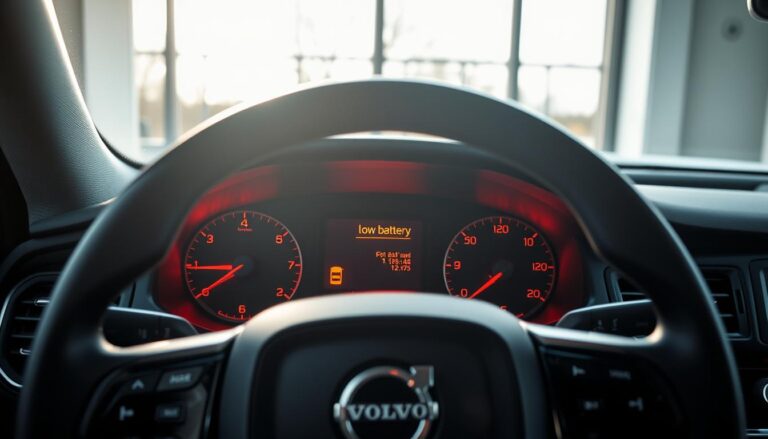

Having the center display go dark can be alarming during a drive. The issue may show up as an intermittent freeze or as a persistent blank display on a 2025 volvo xc90.
Many owners report that Google-based systems can freeze or lose power briefly. Common causes include software glitches, connectivity faults, or low vehicle voltage. A soft reset often fixes the problem without tools.
This Troubleshooting Guide sets clear expectations. First, follow simple safety steps. Next, run quick checks and try a soft reset. If that fails, check for software updates and then consider dealer diagnostics.
Note: a dark display does not always mean total system failure. Repeated outages, unresponsive touch input, or failed updates suggest deeper faults that need professional testing.
Key Takeaways
- A dark center display can be intermittent or constant.
- Start with safety, quick checks, then a soft reset.
- Software glitches and low voltage are common causes.
- Most fixes are non-invasive and can be done in-vehicle.
- Repeat failures or touch loss require dealer diagnostics.
What a black infotainment screen can mean on the 2025 Volvo XC90
Careful observation often reveals whether the issue is temporary or systemic.
Temporary software freeze — the display may stop responding while audio, navigation prompts, or steering-wheel controls still work. You might hear prompts or continue to get turn-by-turn voice directions. This suggests the display layer failed but background services remain active.
Full reboot behavior — the screen goes black, then shows the Volvo logo or a full restart sequence. Timing is usually a few seconds to a minute. A reboot means the entire system restarted, not just the UI.
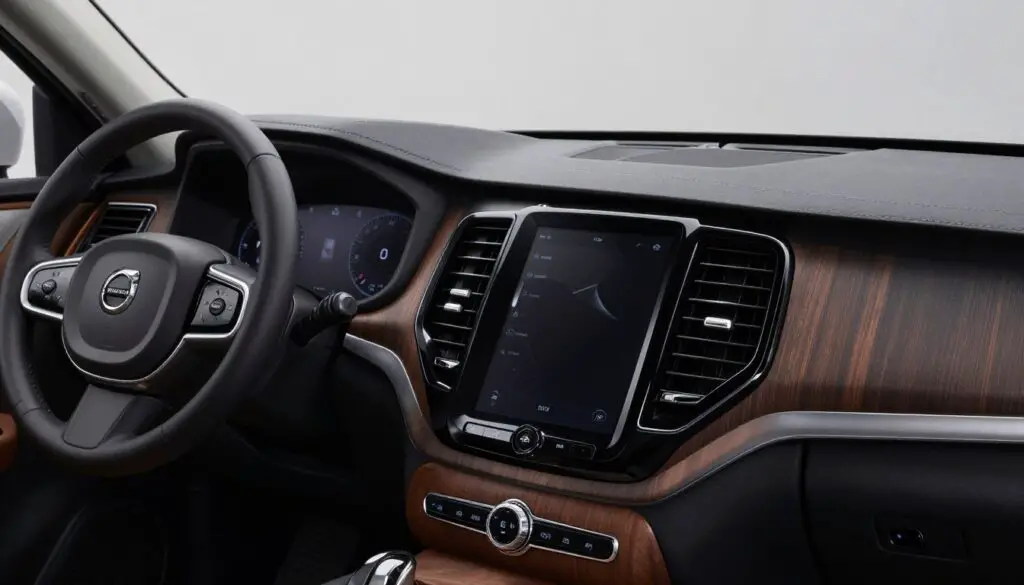
Watch for patterns: failures after startup, when a phone pairs, or when an app launches. Patterns point to software bugs, cache overload, or power instability.
- Stuck display: frozen image, no logo, touch unresponsive.
- Restart event: clear blackout, logo appears, then normal boot.
- Audio-only failure: sound continues while display is off.
| Symptom | Likely cause | What you see |
|---|---|---|
| Frozen UI | Software glitches or cache overload | Static image, touch ignored |
| Full reboot | System restart or power drop | Black then logo then boot |
| Display lost but audio works | Display layer fault, UI module fault | Voice prompts continue, buttons work |
Next steps: use quick checks, perform a soft reset, and verify updates. Note timestamps and triggers to help narrow the root cause.
Safety first: what to do while driving if the screen goes black
If the center display drops out during a trip, prioritize control of the vehicle before troubleshooting. Keep both hands ready and your eyes on traffic. The goal is to stay safe while you assess whether driving can continue.
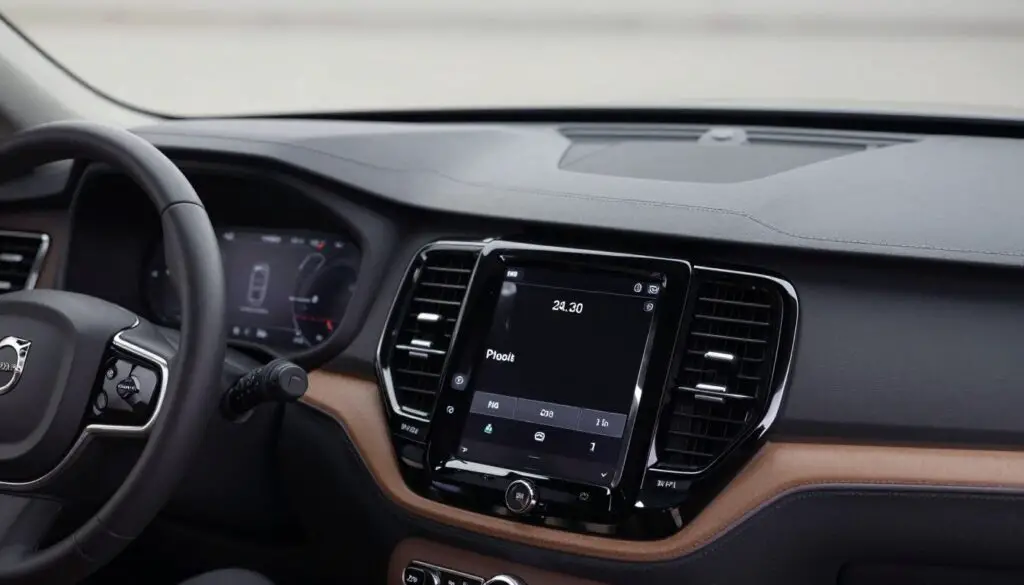
Minimize distraction and use steering-wheel controls when possible
Avoid tapping the center screen repeatedly. That adds distraction and rarely fixes an intermittent fault while driving.
Use steering-wheel buttons or voice commands to adjust audio and accept calls. These let you manage essentials and keep focus on the road.
Pull over before attempting resets or settings changes
If critical functions like lights or instrument warnings fail, stop as soon as it is safe and seek service. Otherwise, you may continue driving briefly if navigation and power remain usable.
Always pull over to a safe spot before attempting a soft reset. Rebooting can take some time, and trying multiple resets while moving will increase risk and complicate troubleshooting.
- Keep attention on driving — do not fiddle with the display while moving.
- Use steering controls and voice features when available.
- Stop safely before any reset or deep settings change.
Quick checks before troubleshooting the Volvo infotainment system
Begin with a quick walk-around check to rule out easy power or setting causes before deeper fixes.
Confirm the vehicle is fully on, not in accessory mode. Turn the ignition to full power and verify that instrument lamps are steady. Accessory power can let audio run while the center display shuts down.
Check display brightness and any screen-cleaning or display-off modes that make the screen appear dark. Open the settings profiles to confirm no one set a low-brightness or sleep mode by accident.
Look for signs of intermittent power. Flickering interior lights, repeated warning beeps, or other electronics that reset suggest unstable voltage.
Quick physical checks help. Inspect near the button cluster for spills or moisture and avoid pressing random controls. These simple steps rule out obvious parts or wiring issues.
- Verify full ignition power, not accessory mode.
- Check brightness and display-cleaning modes in settings.
- Watch for flicker or other resets that point to battery or charging problems.
If these checks do not fix the problem, proceed to a controlled soft reset next. Note any recurring patterns or conditions to tell a technician if service becomes necessary.
Why is my 2025 XC90 infotainment screen black?
A clear list of common causes helps you decide whether a quick reset will fix the problem.
Software freezes and overloaded cache
Temporary bugs or a full memory cache can crash the user interface. A frozen UI often clears after a reboot or update. Corrupted app data causes the display layer to fail while background functions keep running.
Low battery voltage or unstable power
Voltage dips from a weak battery or charging fault can force modules to restart. When the power rail drops, the center module may fail to initialize and remain dark until power stabilizes.
Connectivity conflicts with phones or apps
Bluetooth or app handshakes can overload the service layer. A phone reconnecting repeatedly or multiple paired devices competing may destabilize the system and trigger a blackout.
Rare hardware or module faults
Some failures trace to a faulty display module or wiring. These cases need dealer diagnostics and possible module replacement rather than repeated DIY resets.
| Symptom | Likely cause | Quick action |
|---|---|---|
| Intermittent freeze | Software bug or cache overload | Soft reset; check updates |
| Reboot on startup | Low battery or power instability | Test battery/charging; avoid heavy loads |
| Drop after phone pairing | Connectivity conflict | Delete and re-pair phone |
| Persistent dark display | Hardware/module fault | Schedule dealer diagnostics |
Most cases resolve with a soft reset. If problems persist, document times and conditions to help the dealer diagnose the model-specific fault.
How to perform a soft reset on a 2025 Volvo XC90 screen
Start a soft reset before more invasive steps. It clears temporary faults without erasing personal settings or saved data.
Step-by-step:
- Press and hold the Home button located below the center touchscreen for about 20 seconds.
- Keep holding until the display goes dark and the screen goes black.
- Release when the Volvo logo appears and wait for the full reboot to finish.
What you should see: the display turns off, then the Volvo logo, then normal startup. After the reboot, test touch response, audio, and navigation.
What a soft reset does (and doesn’t) erase
The reset refreshes the infotainment system session and clears cached glitches. It does not delete saved profiles, contacts, or navigation history.
Best times to try it
Use this reset after recent updates, following a Bluetooth drop, or when an app freezes. Wait at least 60 seconds after the logo appears before assuming the process failed.
Caution: Avoid repeating resets back-to-back. If the unit fails again immediately, move to update checks and power diagnostics.
| Action | Expected result | Next step if failure |
|---|---|---|
| Hold Home button ~20s | Screen goes black; Volvo logo; reboot | Check for updates and battery voltage |
| Reboot completes | Touch, audio, nav respond | Test Bluetooth and apps |
| Immediate repeat failure | Persistent blackout or crash | Schedule dealer diagnostics |
Restart vs. reset: which is better for infotainment issues today?
Choose the most targeted action first: a system reset often fixes UI problems faster than a full restart.
Simple vehicle restart steps and when they help
How to restart the vehicle: park, turn the ignition fully off, wait 30–60 seconds, then restart. This clears power rails and can reset multiple modules at once.
Use a full restart when multiple electronics behave oddly or when the system fails to initialize at startup. A vehicle restart can help when the fault spans beyond the display module.
When a soft reset is the faster fix for a black screen
Try a soft reset first if the car still drives normally and audio or other controls work. This targets the infotainment module without interrupting other subsystems.
Soft resets usually take less time than cycling the whole vehicle and often restore touch response in one attempt. If the problem returns, document the condition and the exact time before seeking service.
| Action | When to try | Expected time |
|---|---|---|
| Soft reset | Screen frozen but car functions normally | About 1–2 minutes |
| Full vehicle restart | Multiple modules acting up or no init at startup | 2–5 minutes |
Quick rule: if only the display is affected, reset the module first. If several systems fail, restart the vehicle. Record which action fixed the issue to help technicians diagnose repeat problems.
When a factory reset might be necessary (and what you’ll lose)
When repeated glitches resist soft restarts, a full reset can clear corrupted settings. Use this only after you try soft resets and document recurring errors.
Common reasons to use a factory reset
- Persistent errors that return after multiple soft resets.
- Ongoing glitches that affect touch response, navigation, or app behavior.
- Preparing the car for a new owner to remove personal profiles and accounts.
What the reset removes
Expect loss of user-level data: personal settings, stored contacts, and saved navigation destinations will be erased.
Where to find the option
Open Settings → System → Reset Options to start the process. Back up or note important preferences first, such as audio profiles and favorite routes.
| Situation | What’s lost | Recommended next step |
|---|---|---|
| Recurring UI freezes | Profiles, contacts, navigation history | Back up preferences, perform factory reset |
| Ownership transfer | User accounts and paired devices | Factory reset and unpair devices |
| Reset does not fix problem | No additional user data lost | Schedule professional diagnostics for module and power checks |
Check for software updates that fix black screen problems
Running the latest code helps prevent recurring UI crashes and connection errors.
Why updates matter on Google-based systems
Connected services depend on recent patches and compatible app libraries. Many components in a Google-powered center rely on coordinated releases to work well.
Volvo releases updates to patch bugs, improve performance, and keep third-party apps stable. Map and app services can fail when versions drift.
Signs you may be running outdated code or map data
- Recurring freezes or repeated touch lag after startup.
- Slow app launches and frequent connection drops.
- Navigation delays or odd routing errors tied to old google maps data.
Check for available updates inside the settings menu and follow Volvo’s recommended install steps. After completing an update, perform a soft reset to clear old sessions and stabilize behavior.
| Item | Effect | Action |
|---|---|---|
| System update | Patches UI bugs and improves stability | Install via Settings → System → Updates |
| Map data | Fixes navigation lag and routing errors | Update maps when prompted or via dealer |
| Failed installs | May indicate deeper module or power issues | Contact dealer for diagnostics |
Note: if updates repeatedly fail to apply, or if problems return after patching, involve a service center. Technicians can verify installs and run deeper checks on volvo infotainment modules in volvo cars, including models like the 2025 volvo during dealer diagnostics.
Battery voltage and power supply: a hidden cause of screen blackouts
Power stability matters more than you might think. The center unit needs steady voltage to boot and stay responsive. Even small dips during start/stop events or cold mornings can cause sudden failures that mimic software crashes.
Symptoms that point to low voltage vs. a normal reboot
Low-voltage signs include multiple electronics resetting, interior lights flickering, and warning messages that appear with starts.
A normal reboot usually shows the brand logo and completes quickly without other modules resetting. If several devices reset at the same time, suspect the electrical feed.
When to have the battery and charging system tested
If blackouts return on startup, if the vehicle cranks slowly, or if resets repeat after short drives, have the battery and alternator checked.
Get testing at a qualified service center. Technicians can load-test the battery, check charging rails, and swap suspect parts. Fixing power faults reduces repeat issues and improves overall reliability over time.
| Trigger | Likely action | Result |
|---|---|---|
| Repeated blackouts on startup | Battery load test | Confirm health or replace battery |
| Flicker or multi-module resets | Charging system check | Repair alternator or wiring |
| Problems after short trips or cold starts | Full electrical diagnostic | Prevent future failures |
Bluetooth connection issues that can trigger infotainment glitches
Bluetooth troubles often show up as sudden disconnects or poor audio during calls and streaming. These faults can start small and then affect the entire system.
How problems present: pairing failures, random disconnects, audio dropouts, and occasional interface freezing.
Clean re-pair workflow:
- Delete all paired devices from the car and the phone.
- Restart both the phone and the vehicle module.
- Pair a single phone again and test calls and media.
Keep software current. Update your phone OS (iOS or Android) and the car’s software to avoid compatibility conflicts.
Reduce saved devices. Trim the list of stored pairings in the vehicle to prevent memory overload and connection confusion. Re-add devices one at a time after verifying stability.
Test after changes: place a call and stream music for several minutes before adding more phones back.
If bluetooth-triggered blackouts persist even with a single paired phone, that suggests deeper software or module faults and professional diagnostics may be needed.
| Symptom | Quick action | Expected result |
|---|---|---|
| Pairing fails | Delete pairings; restart devices; re-pair | Successful reconnect and stable audio |
| Random disconnects | Update phone OS and car software | Improved connectivity and fewer dropouts |
| Audio cuts out and UI freezes | Remove extra saved devices; test with one phone | Reduced memory load; stable sessions |
| Persistent blackout after bt events | Document occurrences; seek dealer diagnostics | Module-level check and repair |
For related audio troubleshooting, see the volume not working guide.
Apple CarPlay or Android Auto not working on the 2025 Volvo XC90
CarPlay and Android Auto may fail to start or behave oddly during a drive, but simple checks often point to the cause.
Try a high-quality cable and switch from wireless to wired
Common symptoms include apps not launching, missing icons, voice command glitches, or unstable sessions that match display freezes.
Start with the cable: use an OEM or high-quality USB cable and test a wired connection if wireless projection is flaky. Wired mode often restores stability when wireless drops cause repeated disconnects.
Avoid conflicts between native apps and third-party apps
Outdated phone OS or vehicle software can break compatibility. Keep both the phone and the infotainment module up to date to reduce connection problems.
Close competing navigation or audio apps and select a single primary source during testing. If issues persist, try a different phone and cable to see whether the fault follows the device or the vehicle.
“A simple cable swap and a software update fix most app projection faults,” tech advisors often note.
| Issue | Quick action | Result |
|---|---|---|
| Doesn’t launch | Use OEM cable; try wired mode | Reliable session start |
| Icons missing | Update phone and vehicle | Restore app list |
| Voice command lag | Close other apps; re-pair phone | Stable voice control |
Navigation and Google Maps problems when the screen is black or frozen
Navigation may lag or stop responding when the map app freezes or loses power during a drive.
Outdated maps versus navigation app software errors
Outdated map data can cause slow route planning, wrong turn prompts, or missing roads. Map updates refresh routing data and fix many map-related faults.
Software-level errors in the navigation app show as sudden freezes, UI crashes, or route guidance that never starts. These need a module reset or a targeted software update.
When GPS hardware might need inspection
Signs of antenna or receiver trouble include a consistently wrong location, frequent signal loss in open areas, or when multiple navigation apps fail at once.
If location jumps, stays fixed while you move, or loses satellites repeatedly, suspect hardware rather than data or app faults.
Quick actions: perform a soft reset, update maps, and test navigation again. If problems repeat, schedule a service visit.
“When maps and the navigation layer behave erratically after resets, an expert technician should inspect the GPS antenna and receiver.”
| Cause | Typical symptom | Quick fix |
|---|---|---|
| Outdated map data | Wrong routing, missing roads | Install map updates; reboot system |
| Navigation app software errors | App freeze, no guidance | Soft reset; check software updates |
| GPS antenna/receiver fault | Inaccurate position, signal drops | Book service with an expert technician |
Service tip: note timestamps and conditions when faults occur. That log helps the technician trace whether the issue follows a specific model or installation.
No sound or audio system problems that appear with a black screen
A quick sound test helps tell if the main module still operates even when the display goes dark.
Why audio checks matter: If radio, media, or voice prompts play, the core unit likely runs and the fault may be limited to the user layer. If nothing plays, the problem may reach the amplifier or power feed.
Test multiple sources: radio, Bluetooth audio, USB
- Radio: tune to FM/AM and listen for station audio.
- Bluetooth: play a track from a paired phone and confirm playback.
- USB: insert a known-good drive or cable and try media files.
Check sound settings and profiles before assuming hardware failure
Open audio profiles and verify mute, balance, and fader. Some profiles silence rear or front channels by design. Also check equalizer presets and active profiles that can mask output.
Next steps: perform a soft reset when audio and display problems appear together. If all sources fail after resets and updates, document conditions and seek module-level diagnostics — the amplifier or head unit may need service.
| Test | Pass result | Action if fail |
|---|---|---|
| Radio | Audio plays | Check profiles and reboot |
| Bluetooth | Phone audio streams | Re-pair device; update phone |
| USB | Files play | Try new media and port test |
Wi-Fi and in-car data connectivity drops that impact apps and screen behavior
A weak or lost data link often shows as slow app loading, timeouts, or an “Internet Connection Lost” alert. These messages can make the center appear frozen while maps or streaming fail to refresh.
Confirm whether the fault follows your phone or the vehicle. Turn off your phone hotspot and try the car’s built‑in data, then reverse the test. If the phone restores services, the problem likely came from the hotspot; if not, suspect the vehicle connection.
Reconnect hotspot/SIM and reboot to restore services
Steps to try:
- Disconnect and then reconnect the phone hotspot or the car SIM.
- Restart the infotainment module with a soft reboot to clear stalled sessions.
- Test apps and maps after the reboot to verify the link is stable.
Note: repeated connectivity problems often trace to outdated software. Check for a system update and install patches before booking service.
“A fast reconnect and a clean reboot fix most app load failures,” tech advisors often report.
These behaviors show up across Volvo’s Google‑based lineup, including volvo ex90 and volvo ex30, so the same checks apply beyond this model.
When to contact a Volvo dealer or service center for diagnostics
Frequent reboots, failed installs, or touch that never responds are signs to get expert help at a dealer or certified service center.
Stop DIY if the problem returns soon after a soft reset, if updates fail repeatedly, or if touch input stays unresponsive. These red flags suggest deeper faults than the owner tools can address.
What technicians can do
- Run VIDA diagnostics to read fault codes and module logs.
- Check module communication, power rails, and charging systems.
- Apply official software installs or reflashes and replace worn parts when needed.
Expected outcomes
Most faults get a software reflash or configuration repair. In rare cases a faulty module or parts might need replacement after tests confirm hardware failure.
How to document the issue
Bring clear photos or video of the dark display, exact timestamps, outside temperature, whether a phone was connected, and which apps ran. Note how long a soft reset helped and when the problem returned.
“Well-documented events speed diagnosis and help the dealer trace recurring faults,” tech staff often advise.
Tip: use dealer service while under warranty to ensure repairs and part replacements are recorded for volvo cars and future claims.
Conclusion</h2>
Prioritize safe driving, then follow a short checklist to restore normal operation.
Start with safety: if the vehicle still drives, park safely before troubleshooting. Perform quick checks, try a soft reset, then check for available updates and clean up connectivity like Bluetooth or app pairings.
Many 2025 volvo owners find the problem is software related and clears after a reset plus current updates. If multiple modules reset or audio and lights act up, test battery and charging before more DIY steps.
Keep the infotainment environment lean: remove unused paired devices, limit background apps, and avoid repeated reset cycles. The same approach works across plug-in hybrid and hybrid trims and on models such as the volvo ex90 and volvo ex30.
If faults repeat, touch stays unresponsive, or updates fail, schedule dealer service for VIDA diagnostics and parts checks. The goal: a steady, safe driving experience with reliable navigation and audio system performance.
FAQ
What can cause a black infotainment screen on a 2025 Volvo XC90?
Several things can cause a blank display: temporary software freezes, overloaded system memory or cache, low battery voltage or unstable power, Bluetooth or phone connectivity conflicts, and rare hardware or module faults that need dealer diagnostics.
How can I tell if the issue is a temporary software freeze or a deeper hardware problem?
If audio still plays, steering-wheel controls work, or the screen briefly returns after a restart, it’s likely software. Persistent blackouts, touch unresponsiveness, or repeated failures after reboots point to a hardware module, power issue, or wiring fault that requires professional inspection.
What should I do while driving when the display goes black?
Minimize distraction. Use steering-wheel controls, voice commands, or physical buttons for critical functions. If you must troubleshoot, pull over safely before attempting resets or making settings changes.
What quick checks can I run before attempting a system reset?
Confirm the vehicle is fully on (not in accessory mode). Check screen brightness and for screen-cleaning or demo modes. Look for other signs of intermittent power like dashboard lights flickering or radios rebooting, and verify there’s no scheduled software update in progress.
Could low battery voltage cause the display to go dark?
Yes. Weak battery or charging-system problems can drop voltage and cause modules to reboot or screens to black out. If other electronics behave oddly or the car recently had a jump-start, have the battery and alternator tested.
Can phone connections or apps make the Volvo screen go blank?
Conflicted Bluetooth pairings, corrupted phone profiles, or third-party apps can overload the infotainment. Delete and re-pair devices, update your iPhone/iOS or Android build, and limit saved devices to reduce conflicts.
How do I perform a soft reset on the XC90 infotainment system?
Press and hold the Home button until the screen goes dark, then wait for the Volvo logo and full reboot. A soft reset clears temporary software states but does not erase personal data or navigation history.
When is a simple vehicle restart enough instead of a soft reset?
A full vehicle power cycle (turning the car off, wait 30 seconds, then restart) can clear minor glitches tied to vehicle systems. Use a soft reset when apps freeze or Bluetooth drops while the vehicle is already on.
When should I consider a factory reset, and what will it remove?
Choose a factory reset for persistent errors that return after soft resets and updates. It will erase personal settings, paired devices, saved contacts, and navigation history. Find it under Settings → System → Reset Options.
Are software updates important for fixing display problems?
Absolutely. Volvo’s Google-based infotainment receives fixes and stability patches. Check for firmware and map updates regularly; outdated software can trigger freezes, app crashes, and compatibility issues with phone OS updates.
How do Bluetooth and CarPlay/Android Auto problems show up alongside a black screen?
Symptoms include dropped connections, frozen app screens, or “no data” messages. Try a high-quality USB cable and switch from wireless to wired CarPlay/Android Auto. Remove duplicate or old device pairings and update phone software for better compatibility.
What if navigation or Google Maps stops working when the screen freezes?
Distinguish outdated map data from app-level software errors. Reboot the system, check for navigation updates, and if GPS fixes persist, have the antenna or receiver inspected by a technician.
Could a black screen also affect sound or audio functions?
Sometimes. Test multiple audio sources—AM/FM, Bluetooth, USB—to see if sound is independent of the display. Review audio profiles and source settings before assuming a hardware amplifier fault.
Do Wi‑Fi or in-car data drops cause the infotainment to go dark?
Poor or lost internet can make apps fail or stall, but it normally doesn’t blank the entire display. Reconnect the hotspot or embedded SIM and reboot the system to restore app services and remove related errors.
When should I contact a Volvo dealer or service center?
Seek dealer help for repeated black screens, failed or looping updates, persistent touch or responsiveness problems, or if resets don’t resolve the issue. Technicians can run VIDA diagnostics, check modules, and apply official software installs or hardware repairs.
What information helps service techs diagnose the problem faster?
Document occurrences with photos or short videos, note timestamps, driving conditions, recent software updates, connected devices, and any warning lights or error messages. This context speeds up module checks and targeted fixes.